Generating New Models
The Model Generator dialog provides options for generating new deep learning and machine learning (classical) models for the current Segmentation Wizard session. You should note that the appearance of the dialog will change for the selected model type — Deep Learning or Machine Learning (Classical).
 Deep Learning Model Types
The Model Generator dialog provides options — architectures, input count, and a select number of editable parameters — for generating new deep models.
Click the Generate New Model button on the Models tab to open the Model Generator dialog, shown below. You can then select Deep Learning as the Model Type to open the dialog and view the options for generating new deep models.
Model Generator dialog for deep model types

| Description | |
|---|---|
| Model Type |
Lets you choose a model type — Deep Learning or Machine Learning (Classical).
Note Refer to the topic Machine Learning (Classical) Model Types for information about the algorithms and feature presets for Machine Learning (Classical) models. |
| Architecture |
Lists the default deep model architectures supplied with the Segmentation Wizard (see Architectures and Editable Parameters for Semantic Segmentation Models).
Note Pre-trained models are also available here (see Pre-Trained Models). |
| Architecture Description | Provides a short description of the selected architecture and a link for further information. |
| Input Dimension |
Lets you select an input dimension, as follows.
2D… The 2D approach analyzes and infers one slice of the image at a time. All feature maps and parameter tensors in all layers are 2D. 2.5D… The 2.5D approach analyzes a number of consecutive slices of the image as input channels. The remaining parts of the 2.5D model, including the feature maps and parameter tensors, are 2D, and the model output is the inferred 2D middle slice within the selected number of slices. You can choose the number of slices, as shown below.
3D… The 3D approach analyzes and infers the image volume in three-dimensional space. This approach is often more reliable for inference when compared to 2D and 2.5D approaches. but may need more computational memory to train and apply. Note Only U-Net 3D is a true 3D model that uses 3D convolutions. The number of input slices for this model is determined by the input size, which must be cubic. For example, 32x32x32. U-Net uses 2D convolutions, but can take 2.5D input patches for which you can choose the number of slices. You should also note that in some cases, 3D models can be more reliable for segmentation tasks. |
| Parameters |
Lists the hyperparameters associated with the selected architecture and the default values for each (see Architectures and Editable Parameters for Semantic Segmentation Models). Note Refer to the documents referenced in the Architecture Description box for information about the implemented architectures and their associated parameters. |
 Generating New Deep Learning Models
Refer to the following instructions for information about generating new deep models in the Model Generator dialog. You can also create and generate new models in the Model Generation Strategy dialog (see Model Generation Strategies).
- Click the Generate New Model
 button on the Models tab.
The Model Generator dialog appears.
- Choose Deep Learning as the Model Type.
- Choose the required architecture in the Architecture drop-down menu, as shown below.

Note If you selected 'Pre-trained (by the Dragonfly Team)', you can choose a specific model in the Pre-trained model drop-down menu.

- Modify the hyperparameters for the selected architecture, optional.
Note Refer to Architectures and Editable Parameters for Semantic Segmentation Models for information about resetting the parameters for a specific architecture.
- Click Generate.
After processing is complete, the new model appears in the Models list.
- Do one of the following:
- Generate additional models.
- Click the Close button to close the Model Generator dialog.
Note You can edit the training parameters of a deep model after it is generated (see Training Parameters for Deep Models).
Machine Learning (Classical) Model Types
The Model Generator dialog provides options — Algorithms and Feature presets — for generating new Machine Learning (Classical) models.
Click the New button on the Models tab or in the Model Generation Strategy dialog to open the Model Generator dialog, shown below. You can then select Machine Learning (Classical) as the Model Type to open the dialog and view the options for generating new Machine Learning (Classical) models.
Model Generator dialog for Machine Learning (Classical) model types

| Description | |
|---|---|
| Model Type |
Lets you choose a model type — Deep Learning or Machine Learning.
Note Refer to the topic Deep Learning Model Types for information about the architectures and parameters for deep models. |
| Algorithm |
The available machine learning algorithms are accessible through the Algorithm drop-down menu. You should note that each algorithm will react differently to the same inputs and that trying different algorithms will most likely highlight the best choice for a given dataset.
AdaBoost… An AdaBoost classifier is a meta-estimator that begins by fitting a classifier on the original dataset and then fits additional copies of the classifier on the same dataset but where the weights of incorrectly classified instances are adjusted such that subsequent classifiers focus more on difficult cases. Ref: http://scikit-learn.org/stable/modules/generated/sklearn.ensemble.AdaBoostClassifier.html Bagging… A Bagging classifier is an ensemble meta-estimator that fits base classifiers each on random subsets of the original dataset and then aggregate their individual predictions (either by voting or by averaging) to form a final prediction. Such a meta-estimator can typically be used as a way to reduce the variance of a black-box estimator (e.g., a decision tree), by introducing randomization into its construction procedure and then making an ensemble out of it. Ref: http://scikit-learn.org/stable/modules/generated/sklearn.ensemble.BaggingClassifier.html Extra Trees… This classifier implements a meta estimator that fits a number of randomized decision trees (also known as extra-trees) on various sub-samples of the dataset and uses averaging to improve the predictive accuracy and control over-fitting. Ref: http://scikit-learn.org/stable/modules/generated/sklearn.ensemble.ExtraTreesClassifier.html Gradient Boosting… Builds an additive model in a forward stage-wise fashion; it allows for the optimization of arbitrary differentiable loss functions. In each stage n_classes_ regression trees are fit on the negative gradient of the binomial or multinomial deviance loss function. Binary classification is a special case where only a single regression tree is induced. Ref:http://scikit-learn.org/stable/modules/generated/sklearn.ensemble.GradientBoostingClassifier.html Random Forest… A Random Forest is a meta estimator that fits a number of decision tree classifiers on various sub-samples of the dataset and uses averaging to improve the predictive accuracy and control over-fitting. The sub-sample size is always the same as the original input sample size but the samples are drawn with replacement if Ref: http://scikit-learn.org/stable/modules/generated/sklearn.ensemble.RandomForestClassifier.html |
| Feature Presets |
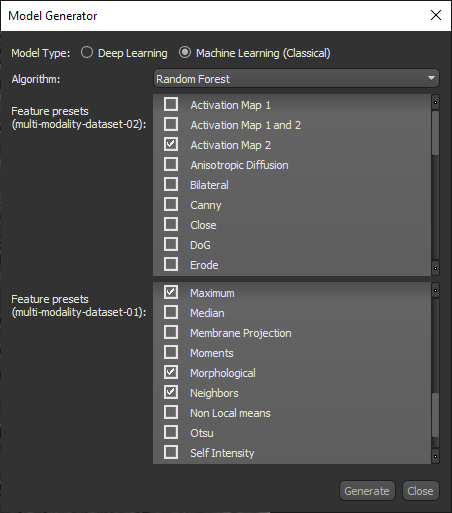
The dataset features presets are a stack of filters that are applied to a dataset to extract information to train a classifier (see Default Dataset Features Presets for information about the available filters).
Note Each filter in a dataset feature preset is applied separately during training and classification. The filters in a preset are not applied in a cascade or as a composite. |
Generating New Machine Learning (Classical) Models
Refer to the following instructions for information about generating new Machine Learning (Classical) models in the Model Generator dialog. You can also create and generate new models in the Model Generation Strategy dialog (see Model Generation Strategies).
- Click the Generate New Model button on the Models tab.
The Model Generator dialog appears.
- Choose Machine Learning (Classical) as the Model Type.
- Choose an algorithm in the Algorithm drop-down menu, as shown below.
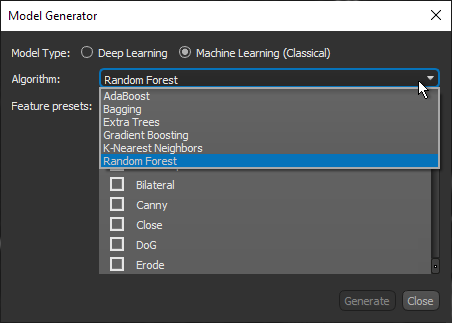
Note Refer to Algorithm for information about the different algorithms that are available and references to the literature.
- Choose the feature presets that you want to use to train the classifier (see
Feature Presets).
You should note that you can choose different feature trees for each input dataset when you are working with multi-modality models, as shown in the following screen capture.
- Click Generate.
After processing is complete, the new model appears in the Models list.
- Do one of the following:
- Generate additional models.
- Click the Close button to close the Model Generator dialog.
